
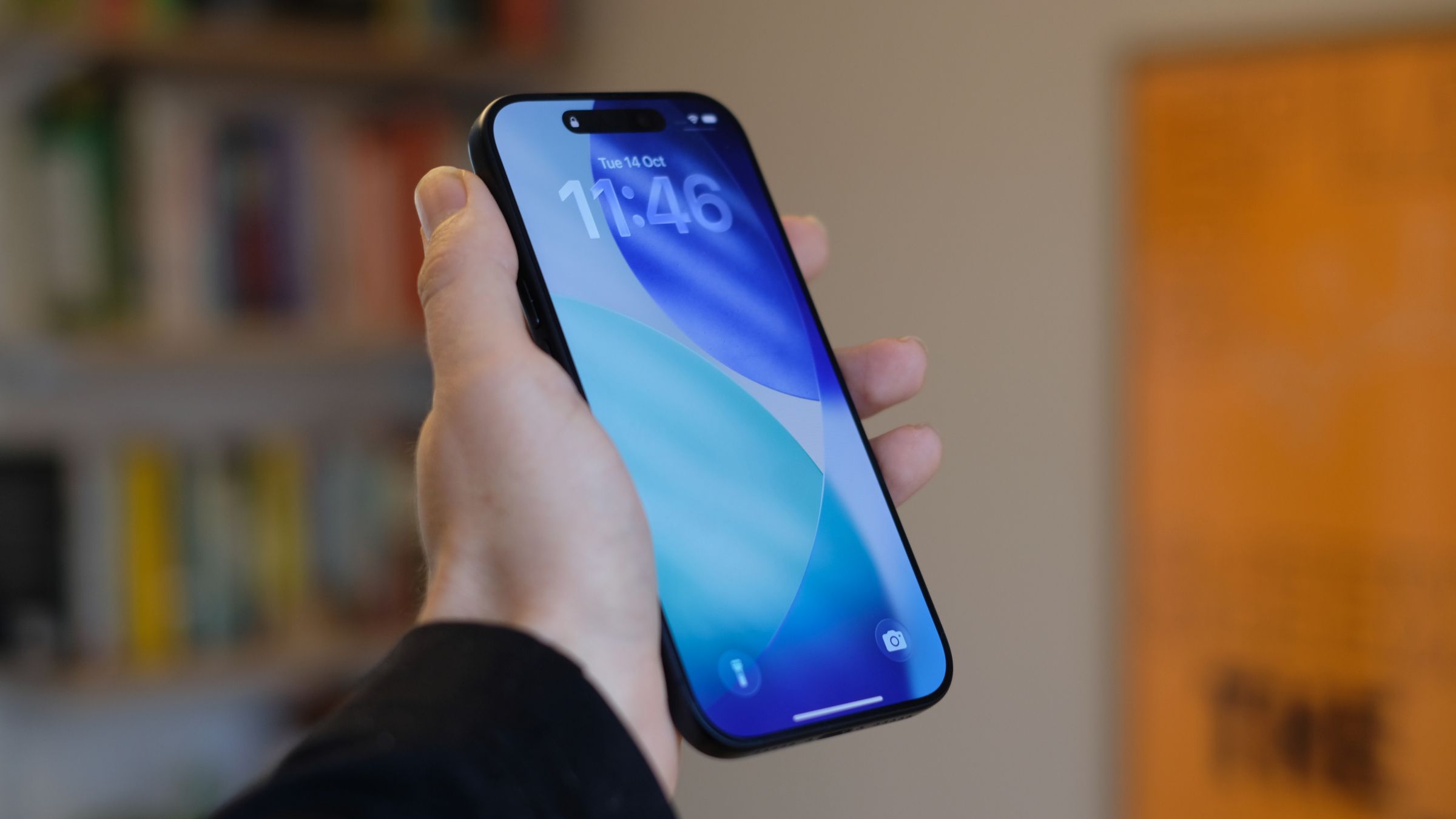
For creatives, the iPhone is a bit of a paradox. The device that houses so many essential tools (high-quality camera, communication apps, portfolio access) is also the primary source of distraction from the work those tools support.
You open your iPhone to check a client message and emerge 40 minutes later from an Instagram rabbit hole. You go to jot down an idea and end up scrolling X. You pick up your device to adjust the camera settings and get pulled into an endless email thread.
You may like
This is the most uncomfortable step, particularly if you use social media platforms for professional visibility. But here’s the thing: these apps are built to be addictive… so the idea of casually “popping in” rarely works out that way.
Instead, take the plunge and delete Instagram, Facebook, LinkedIn, X, TikTok and any other platforms from the phone. Entirely. Note: you’re not quitting the platforms themselves. You’re just moving them to your computer, where they’re slower, clunkier and honestly a bit annoying. Which is kind of the point.
Concerned about missing important messages? Most major platforms offer email notifications for direct messages, and in a genuine emergency people will text or call. The rest can wait until the next time you’re using your computer.
02. Disable Safari
Removing social apps only works if there’s no sneaky way back in. Safari provides exactly that sneaky way back in. So now it’s time to disable Safari. Open Settings > Screen Time > Content & Privacy Restrictions > Allowed Apps, then toggle Safari off. The app will vanish from your home screen and you won’t be able to access it without reversing this process.
This might sound extreme. But think about what you’re actually losing. Impulsive googling that turns into 30-minute time-sucks. “Quick checks” that eat your afternoon. Mobile shopping sites designed to extract money from bored scrollers. What stays? Camera, maps, messages, calls, and whatever work apps you’ve specifically chosen to keep.
Note: This will mean links in emails or texts stop working. If that’s a deal-breaker for work reasons, keep Safari Allowed, but set a 1-minute daily app limit (see below) on it with a Screen Time passcode. This allows you to grab a specific piece of information without letting you wander into a rabbit hole.
You may like
03. Strip the home screen to essentials
Visual overload can be overwhelming, so strip back your screen and calm your nerves (Image credit: Apple)
As creatives, we love a well-designed home screen. All those colourful icons, organised folders and aesthetic widgets make the phone more inviting to pick up and explore. And… well, that’s the problem.
If you want to stop wasting time on your iPhone, you need to go for aggressive minimalism. Keep only genuinely essential apps on your home screen: Phone, Messages, Camera, Maps. That’s it. Everything else should live in the App Library, accessible only through deliberate searching rather than casual browsing.
To remove apps from the home screen without deleting them: press and hold the app icon, select Remove App, then choose Remove from Home Screen rather than Delete App. The app still exists: you’re just making it slightly less convenient to open.
04. Enable grayscale permanently
Here’s another thing you can do to stop wasting time on your phone. Enabling grayscale permanently removes the vibrant colours that make apps engaging and notifications feel urgent (it’s colour theory in action!). Using your phone starts to feel less like you’re visiting Las Vegas and more like an office on a wet Tuesday.
To enable grayscale, navigate to Settings > Accessibility > Display & Text Size > Colour Filters. Enable Colour Filters and select Grayscale.
Want to toggle it on and off quickly when needed (say, when editing photos)? Add it to an accessibility shortcut. The steps are: Settings > Accessibility > Accessibility Shortcut, then select Colour Filters. This way, you’ll be able to instantly toggle colour back on if you need to check a proof or edit a photo, then immediately ‘kill the dopamine’ by plunging the phone back into grey afterwards.
For maximum effect, also enable Reduce Motion (Settings > Accessibility > Motion > Reduce Motion) and bump up your text size (Settings > Display & Text Size > Larger Text). All these changes will make the interface feel more work-like and less like something designed to entertain you.
05. Eliminate notifications ruthlessly
If you’re working on a project that requires sustained focus, constant notifications can be particularly lethal. So go through Settings > Notifications and disable alerts for everything except phone calls, messages and perhaps your calendar. Everything else (email, work communication apps, news) can be checked when you decide to check it, not when a thirsty algorithm demands it.
Extra tip: For messages specifically, go to Settings > Messages > Notifications and set it to show previews only when unlocked. This stops your lock screen becoming a scrollable feed of conversations.
06. Create a focused work mode
(Image credit: Apple)
If your phone is running iOS 16 or later, focus modes let you set different notification and app access rules for different situations. The steps are: Settings > Focus > + > Custom.
Name it something like “Creative Focus” or “Deep Work”. Set it to allow notifications only from emergency contacts or key collaborators. Hide all non-essential Home Screen pages, leaving only Camera and Voice Memos visible. And schedule it to activate automatically during your typical working hours. This creates a proper boundary: during designated creative time, your phone offers no distractions beyond basic functions.
07. Set strict app time limits
For any remaining apps that could become problematic (email apps, news apps, even certain work tools that expand beyond their intended use) set hard time limits through Screen Time. Settings > Screen Time > App Limits lets you set specific daily time allowances per app or app category. Make them generous enough to accomplish tasks, but tight enough to prevent mindless usage. For example, you might settle on 15 minutes for email, 20 minutes for Slack; whatever makes sense for your work, basically.
Note: When you hit the limit, the app becomes greyed out. For this to work in practice, it’s good to choose a Screen Time Passcode that you don’t ‘naturally’ remember. Better yet, have a partner or a trusted colleague set the four-digit code for you. This turns a suggestion into a hard boundary.
Done thoughtfully, these changes can transform your iPhone from an attention sink into a genuinely useful tool. The camera will still be excellent. Maps will still work perfectly. Calls and messages will function exactly as intended. What will be gone are the infinite scroll, the notification anxiety, the compulsive checking, the hour that vanished into nothing.
Remember, none of these changes are permanent. Everything can be reversed if needed. However, most people find they don’t want to reverse them. The iPhone, stripped of its addictive elements, becomes noticeably more pleasant to own. A tool that serves rather than demands, supports rather than distracts.
Which, when you think about it, is what it should have been all along.
Best iPhone deals today
24 months
Unlimited mins
Unlimitedtexts
10GBdata
36 months
Unlimited mins
Unlimitedtexts
1GBdata
36 months
Unlimited mins
Unlimitedtexts
150GBdata
36 months
Unlimited mins
Unlimitedtexts
Unlimiteddata
36 months
Unlimited mins
Unlimitedtexts
5GBdata
36 months
Unlimited mins
Unlimitedtexts
5GBdata